How to Make Coloring Pages from Photos: Easy Step-by-Step Guide
Learn how to make coloring pages from photos with a simple step-by-step process. Pick a clear photo, turn it into printable line art, color it, and bring the finished page to life with Animomo.
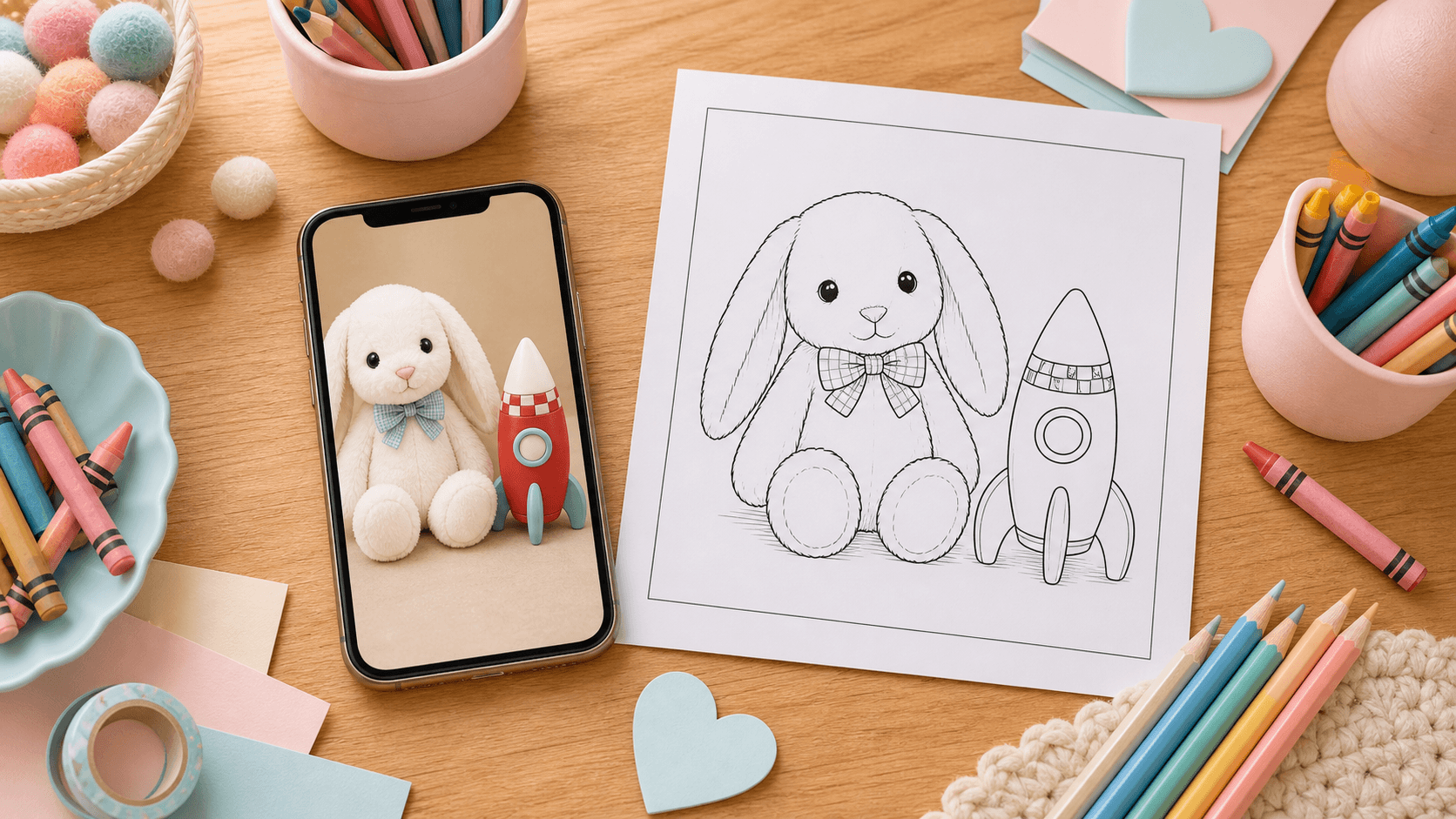
Quick list
- Choose a clear photo with one main subject
- Crop away background clutter
- Brighten the photo and increase contrast
- Convert the photo into black-and-white line art
- Choose a detail level that fits the age of the person coloring
- Clean up extra shadows or tiny details
- Print a test page before making copies
- Color the page and animate it with Animomo
Jump to an idea
Turning a favorite photo into a coloring page is easier than it sounds. You do not need to be an artist, and you do not need a complicated design setup. A clear photo, a simple editing tool, and a printer are enough to make a custom page your child can color.
This guide walks through the whole process in plain language: choose a good photo, make it easier to read, convert it into black-and-white line art, clean it up, print it, and color it. When the page is finished, you can also snap a photo of the colored version and bring it to life with Animomo.
Choose a Clear Photo
The best coloring pages start with simple photos. Look for one main subject, good lighting, and a background that does not compete with the face, pet, toy, or object you want to turn into line art.
- 1Pick a photo where the subject is sharp and easy to see.
- 2Avoid very dark photos, blurry motion shots, and busy backgrounds.
- 3Choose a subject your child will enjoy coloring, like a pet, favorite toy, simple portrait, flower, or family moment.
Crop and Brighten the Image
Before you convert the photo, make it as simple as possible. Cropping and brightening help the tool understand what matters and make the finished coloring page easier for kids to color.
- 1Crop the image so the main subject fills most of the frame.
- 2Brighten the photo if it looks gray, shadowy, or dim.
- 3Increase contrast a little so edges stand out more clearly.
Turn the Photo Into Black-and-White Line Art
Now turn the photo into a coloring page. You can use a photo-to-sketch app, an online image editor, a drawing app, or an AI coloring page tool. Look for settings named sketch, outline, line art, edge detect, or coloring page. If the tool offers styles, start with simple, classic line art before trying detailed sketch effects.
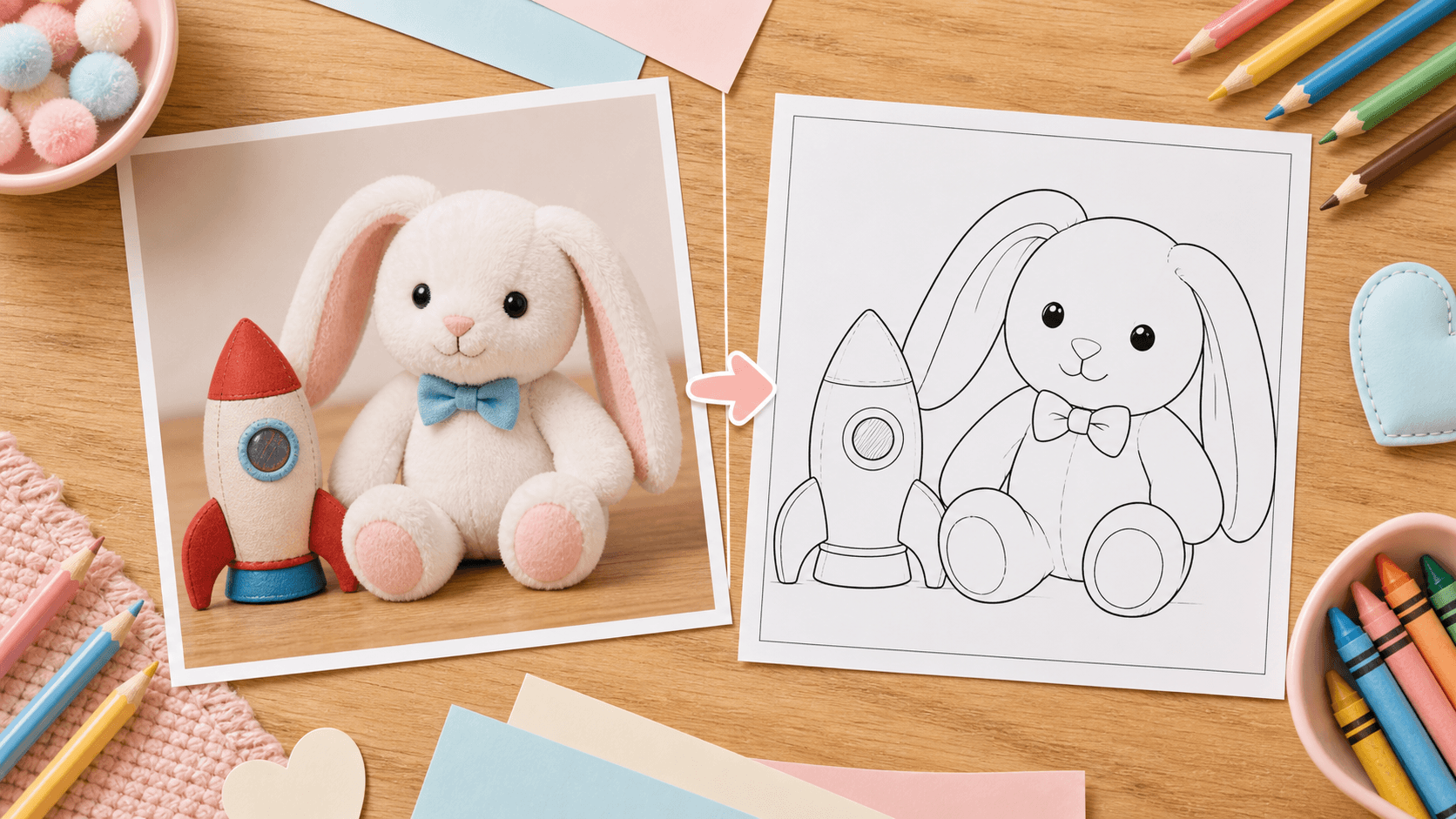
- 1Upload or open your edited photo in the tool you want to use.
- 2Try a sketch, outline, or coloring page effect.
- 3Choose the result with clean black lines, recognizable details, and plenty of open white space.
Choose the Right Detail Level
A good coloring page is not just an accurate copy of the photo. It also needs to be enjoyable to color. Younger kids usually need bigger shapes and fewer tiny lines, while older kids and adults can handle more detail.
- 1For toddlers and preschoolers, choose the simplest result with thick outlines and large blank spaces.
- 2For elementary-age kids, use a medium detail level that keeps the subject recognizable without crowding the page.
- 3For older kids and adults, try more detailed line art, but avoid tiny texture that leaves no room to color.
Clean Up Extra Shadows and Background Clutter
Photo conversions often add too many lines. That is normal. A little cleanup can make the page feel more like a real printable coloring sheet and less like a noisy photo filter.
- 1Erase small background marks that do not help the picture.
- 2Remove heavy shadows that create muddy gray areas.
- 3Keep important details like eyes, smiles, pet features, clothing shapes, and the main outline.
Print a Test Page
Always print one test page before making several copies. What looks fine on a screen can sometimes print too light, too dark, or too detailed. If your tool lets you choose a file type, save the page as a high-quality PNG or PDF for printing.
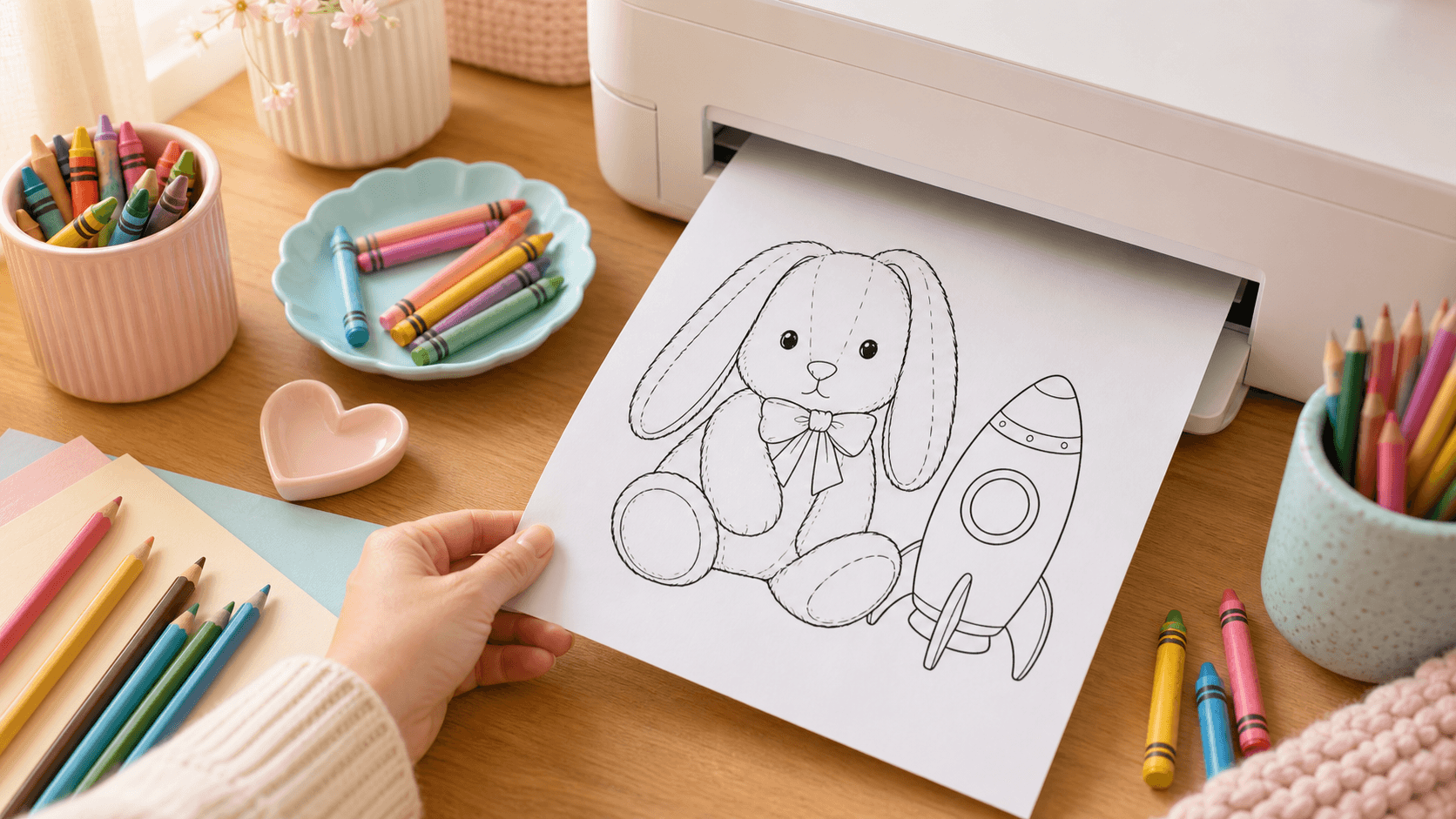
- 1Print on plain white paper first so you can check the result cheaply.
- 2Use black-and-white or grayscale printer settings and choose fit-to-page if the image is getting cut off.
- 3If the lines look too light, increase contrast or darken the image before printing again.
Color the Page
Once the test page looks good, let your child color it however they want. The page does not have to match the original photo. The fun part is making the picture feel personal.
- 1Set out crayons, colored pencils, or washable markers.
- 2Let your child choose realistic colors or completely imaginary ones.
- 3Write the date on the back if the page is something you may want to save.
Bring the Finished Coloring Page to Life With Animomo
After the coloring page is finished, you can turn it into more than a piece of paper. Take a clear photo of the colored page and use Animomo to create a short animated video from the artwork.
- 1Place the finished coloring page on a flat surface with good light.
- 2Take a clear photo from straight above so the page is not tilted.
- 3Open Animomo, add the photo, and turn the colored page into a short animation your family can save or share.
Tips for better printable coloring pages
- Use photos with simple shapes, clear outlines, and one main subject.
- Remove clutter before converting the photo instead of trying to fix everything later.
- Keep the line art bold enough for kids to see easily.
- Leave open white spaces so the page feels relaxing to color.
- Save the final page as a high-quality PNG or PDF instead of a compressed, blurry image.
- Print one test copy before using nicer paper or making copies for a group.
- Use portrait orientation for tall subjects and landscape orientation for wide subjects like cars, buildings, or group scenes.
- Use your own photos, or photos you have permission to use, especially if you plan to share or sell the coloring page.
- Try pets, favorite toys, simple portraits, flowers, vehicles, and vacation photos as starter ideas.
Frequently asked questions
Can I make coloring pages from photos for free?
Yes. Many free phone apps and online editors include sketch, outline, or line-art effects. Free tools can work well for simple photos, especially if you crop and brighten the image first.
What kind of photo works best for a coloring page?
Use a bright, sharp photo with one clear subject and not much background clutter. Pets, toys, flowers, simple portraits, and objects with strong outlines usually work better than busy group photos.
Do I need AI to turn a photo into a coloring page?
No. AI tools can help, but they are not required. A regular photo editor with a sketch or edge-detection effect can also turn a picture into printable line art.
Can I make coloring pages from phone photos?
Yes. Phone photos work well if they are clear, bright, and taken straight-on. Try to avoid blurry photos, harsh shadows, and cluttered backgrounds.
What paper should I use for photo coloring pages?
Plain printer paper is fine for crayons and colored pencils. If your child wants to use markers, thicker paper or cardstock usually handles ink better and reduces bleed-through.
Should I save the coloring page as a PDF or PNG?
Either can work. A PDF is convenient for printing at the right size, while a high-quality PNG is useful if you want to edit the page or place it in another design. Avoid low-quality JPEG exports because they can make the lines fuzzy.
Why does my photo coloring page look too busy?
The original photo may have too much background detail, shadow, or texture. Try cropping closer to the subject, using a simpler photo, lowering the detail level, or erasing background marks before printing.
Related Articles
A Halloween Coloring Activity for Kids: Color It, Tell a Story, Bring It to Life
A calm 30–45 minute Halloween activity that turns one coloring page into a tiny story and family keepsake.
7 Kids Art Display Ideas Parents Will Actually Use
Seven practical ways to display kids artwork at home without turning every surface into a paper pile.
Start With a Free Coloring Page
Browse free printable coloring pages, color a favorite design, then snap a photo and use Animomo to turn the finished artwork into a short animated video.